
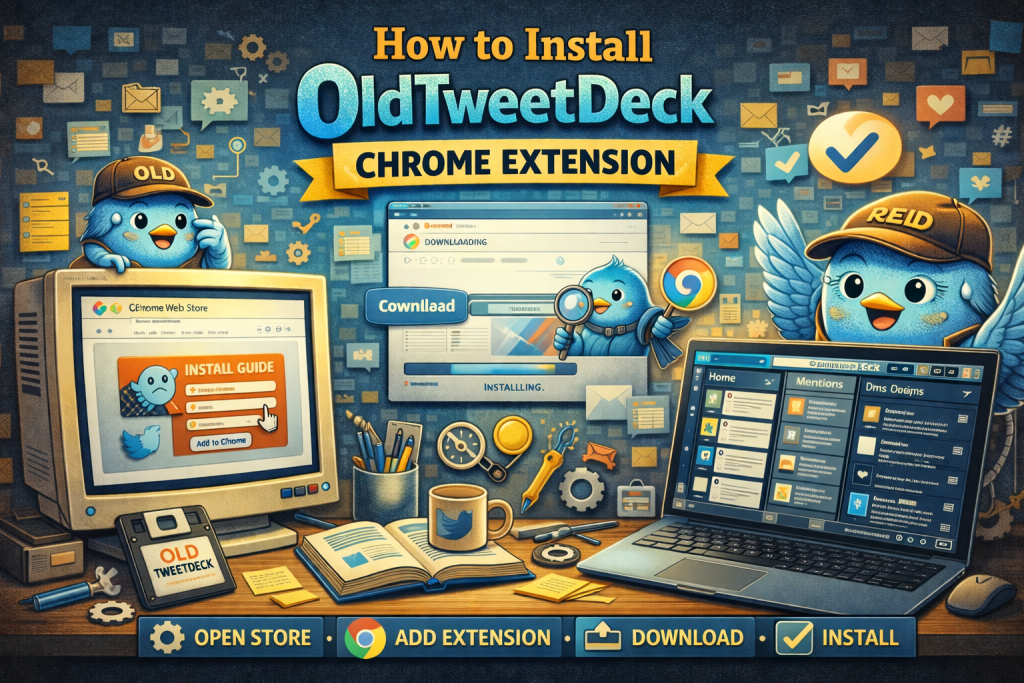
OldTweetDeck is a favorite among long-time Twitter users who miss the classic multi-column layout. X (formerly Twitter) made significant changes to its TweetDeck interface, introducing a subscription-based X Pro layout that many users find limiting.
For those who loved the old layout, OldTweetDeck offers a solution. It restores the familiar interface, allowing users to manage multiple timelines, notifications, mentions, lists, and more, all in one screen. In this comprehensive tutorial, you’ll learn how to safely and effectively install the OldTweetDeck Chrome extension.
Why Install OldTweetDeck?
Since X’s redesign and the move to X Pro, many users have found themselves missing the old TweetDeck interface. OldTweetDeck is a community-made extension that replicates the classic multi-column layout users once loved. It’s particularly useful for:
- Social Media Managers: Need to monitor multiple streams at once? OldTweetDeck gives you all the feeds in one view, speeding up your workflow.
- Content Creators & Journalists: Stay updated with real-time mentions, searches, and trending topics.
- Crypto Traders: Watch multiple streams of information simultaneously to react faster to news.
- Power Users: If you’re used to TweetDeck’s advanced features, the OldTweetDeck extension restores the interface you know.
However, OldTweetDeck is not an official X product, which means it relies on community updates and browser extensions. While it works well for most users, it does have some risks, which we’ll cover later.
Step 1: Open Google Chrome and Update
Before you start installing the OldTweetDeck Chrome extension, ensure that Google Chrome is up to date. Running an outdated browser can cause compatibility issues. Here’s how you can make sure Chrome is updated:
- Click the three vertical dots in the top-right corner of Chrome.
- Navigate to Help > About Google Chrome.
- If there is an update available, Chrome will automatically download and install it.
- After the update is complete, restart Chrome.
Updating ensures that the extension will work properly and that you’re protected from security vulnerabilities.
Step 2: Visit the Chrome Web Store
- Open a new tab in Chrome and go to the Chrome Web Store.
- In the search bar, type OldTweetDeck.
Be cautious when searching. Many similar extensions or scripts may pop up, but only download the official OldTweetDeck extension from trusted sources, preferably the developer’s GitHub page or the Chrome Web Store’s official listing.
Step 3: Review the Extension Details
Before you click Add to Chrome, review these key details:
- Developer Information: Make sure it comes from a well-known source or developer.
- Permissions: Check the permissions the extension is asking for. Only install extensions that ask for reasonable permissions. Avoid extensions requesting access to data on all websites unless absolutely necessary.
- User Reviews: Read through the reviews and check recent feedback. This can give you an idea of how well the extension is working for other users and if there are any current issues.
Step 4: Install the Extension
Once you’ve reviewed the details:
- Click the Add to Chrome button on the extension page.
- A popup will appear asking for permission to install the extension. Click Add Extension.
- Chrome will download and install OldTweetDeck. You should see the OldTweetDeck icon appear in the upper-right corner of the browser’s toolbar.
Step 5: Enable and Pin the Extension
Now that OldTweetDeck is installed, you need to ensure it’s visible and enabled for use.
- Click the puzzle piece icon (extensions) next to the address bar.
- Find OldTweetDeck in the list and click the pin icon to keep it visible on your toolbar for easy access.
- The extension should now be activated.
Step 6: Log In to X and Activate OldTweetDeck
- Go to X.com (formerly Twitter) and log in to your account.
- Refresh the page to activate the extension.
- If the extension is working correctly, you’ll see the classic multi-column TweetDeck layout appear.
- If it doesn’t show up right away, try refreshing the page a couple of times or restarting Chrome.
How to Customize Your OldTweetDeck Dashboard
Once OldTweetDeck is running, it’s time to personalize your experience.
Adding Columns
To add new columns, simply:
- Click the “+” symbol or Add Column option.
- Choose the type of column you want to add, such as:
- Home
- Notifications
- Mentions
- Lists
- Search
- Arrange the columns in your preferred order by dragging them into place.
Resize Columns
You can adjust the width of the columns for better visibility. Simply drag the borders of each column to make them wider or narrower.
Rearrange Columns
To move columns around, click and hold the title bar of a column and drag it to your preferred position. This customization feature gives you full control over your workflow.
Troubleshooting Common Installation Issues
Despite being a simple extension to install, some users experience issues with OldTweetDeck. Here’s how to troubleshoot the most common problems:
1. OldTweetDeck Not Showing the Layout
If OldTweetDeck doesn’t appear after installation, try these fixes:
- Refresh the page: Press Ctrl + Shift + R or Cmd + Shift + R on Mac to force the page to reload.
- Clear browser cache: Old files may be preventing the extension from loading. Clear your cache by going to Settings > Privacy > Clear Browsing Data.
- Check for extension updates: Visit the Chrome Web Store and see if there’s an update for OldTweetDeck.
2. Blank Screen on X
If you’re facing a blank screen after logging in:
- Clear cookies: Go to Settings > Privacy > Clear Browsing Data, and delete cookies and cached images.
- Reinstall the extension: If the issue persists, remove and reinstall the extension.
3. Login Loop
A login loop often occurs if your session token isn’t syncing properly. To fix it:
- Log out of X and log back in.
- Disable conflicting extensions: Some ad blockers or script managers may interfere with OldTweetDeck. Try disabling them and refresh.
Security and Privacy Considerations
Since OldTweetDeck is a third-party extension, security should always be a priority.
- Download only from trusted sources: Ensure you are installing OldTweetDeck from the official Chrome Web Store or the developer’s GitHub.
- Check permissions carefully: Don’t allow excessive permissions. OldTweetDeck should only need access to X.com data.
- Monitor your X account for suspicious activity: If you notice anything unusual, change your password and enable two-factor authentication for added security.
When to Consider Alternatives
If OldTweetDeck stops working due to X platform changes, or if you prefer a more stable, official solution, consider alternatives like:
- X Pro: The official Twitter interface, albeit with fewer customization options.
- Hootsuite or Buffer: Both are powerful social media management tools with similar functionalities.
Conclusion
The OldTweetDeck Chrome extension provides a convenient way to restore the classic multi-column TweetDeck layout on X. With a few simple steps, you can customize your dashboard and monitor multiple timelines, mentions, and lists with ease.
However, as with any third-party extension, you should always take security precautions and stay updated on compatibility changes. If OldTweetDeck stops working due to updates, explore official solutions or other third-party tools that can meet your needs.